
Using VS Code to Write Fiction with AI
A guest tutorial from novelist Nym Coy on her AI-assisted fiction workflow.

Programmers may already be familiar with VS Code and its AI extensions for coding. But there’s no rule that says you have to use it for code. It turns out the same setup—file browser, text editor, AI assistant in a sidebar—works surprisingly well for writing fiction.
This isn’t a guide on how to write. Everyone has their own process. This is just a workspace setup that happens to work well for AI-assisted fiction.
Why VS Code?
VS Code is a free code editor, which sounds intimidating, but it’s really just a text editor with a good file browser. The useful part: you can install extensions that add AI assistants directly into the workspace. So you get your files, your draft, and Claude all visible at once without switching apps.
Why Markdown?
Notes and drafts work well as plain markdown files (.md). Markdown handles basic formatting—chapter titles, bold, italics—while staying readable as plain text. It’s also what AI outputs natively, so there’s no weird conversion step.
The Setup
Step 1: Install VS Code
Download it free from code.visualstudio.com.
Step 2: Open a Folder
VS Code works on folders, not individual files. Create a folder for your novel project, then open it with File → Open Folder. Everything inside—your scenes, notes, character profiles—shows up in the file explorer on the left. This folder is now your workspace.
Step 3: Install Extensions
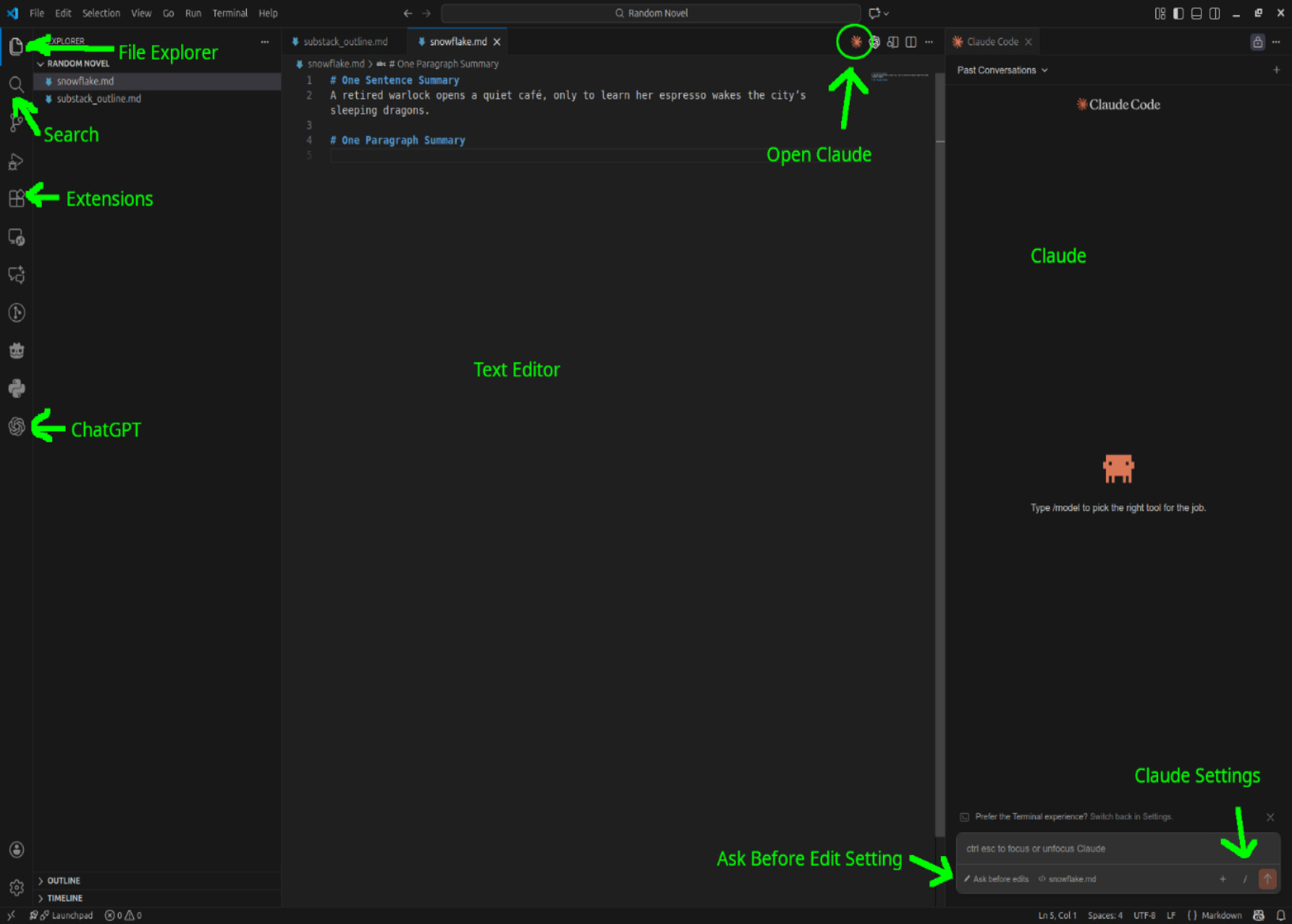
Click the Extensions icon in the left sidebar (looks like four squares) and search for:
Claude Code for VS Code by Anthropic – Claude is the pick for actual writing. It handles prose better than alternatives and follows style instructions more consistently.
Codex by OpenAI – ChatGPT’s coding agent. Useful for technical stuff like combining files or format conversion. More on this later.
Both are paid. If you can only do one, go with Claude.
Step 4: Arrange Your Workspace
Click the orange starburst icon to open Claude Code. Drag things around until you have:
File explorer on the left
Your document in the middle
Claude on the right
Step 5: Log In
Type anything into the Claude text box. It’ll prompt you to connect your Claude.ai subscription.
Use “Ask Before Edits” Mode
In Claude Code’s settings, turn on “Ask before edits”.
Without this, Claude just modifies your files directly. With it on, Claude shows you what it wants to change—old text versus new text, side by side—and you decide whether to accept, reject, or ask it to try again.
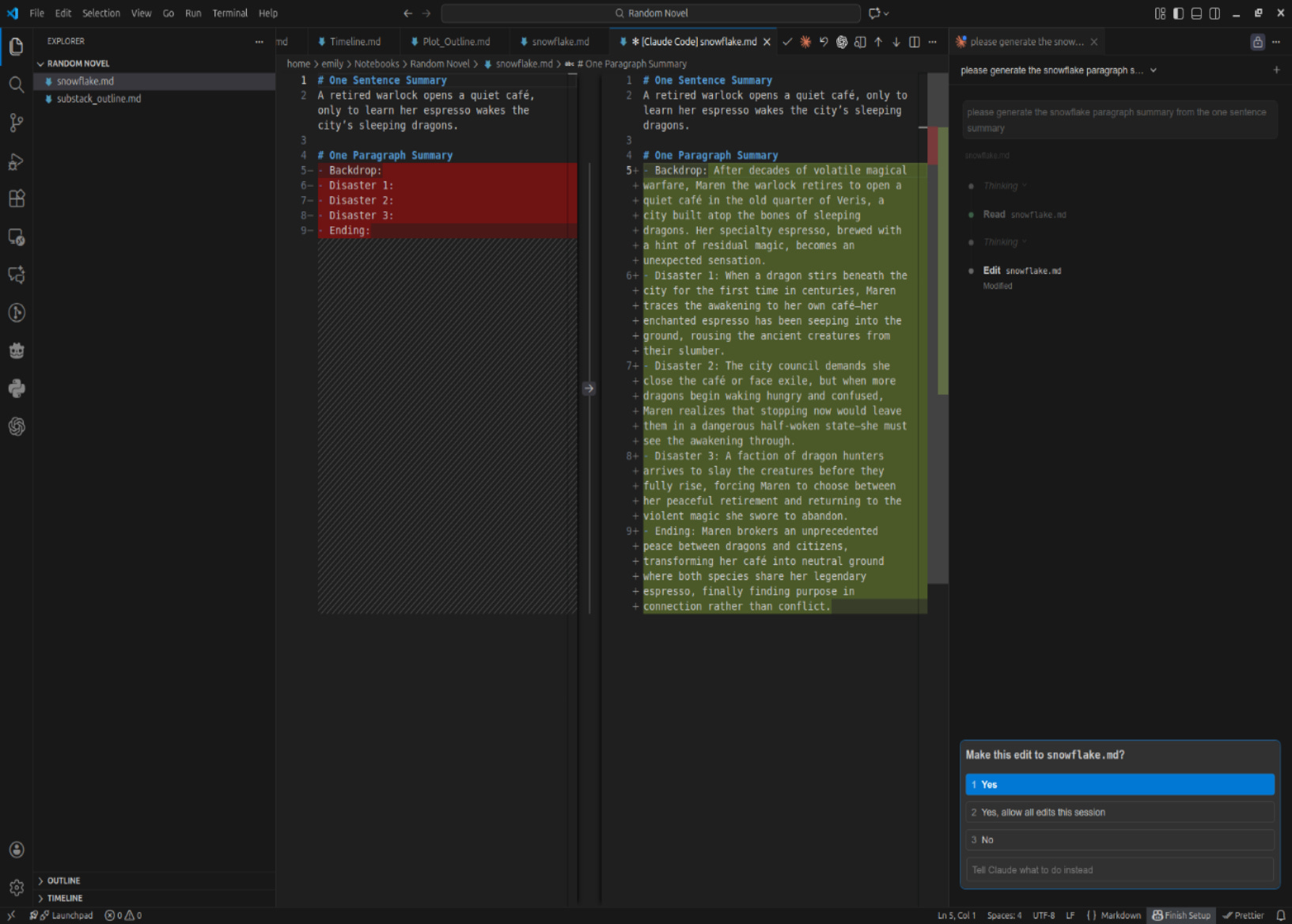
I hated the alternative, asking for a suggestion and cutting and pasting it myself, or else having it make the changes automatically and trying to remember what’s different.
One Scene Per File
AI assistants have context limits. They can only “see” so much text at once. Your full manuscript won’t fit, but a single scene will. With Claude focused on one scene file, it stops making weird references to things that happened in other chapters.
A naming scheme like 1_01_the_cafe_opens.md (Act 1, Scene 1) keeps files sorted properly in the file browser.
Yes, you end up with dozens of files. We’ll deal with that later.
Maintaining Context
The real payoff of this setup is that Claude can see your notes.
Keep a folder of reference files—character profiles, worldbuilding docs, a timeline, whatever you need to stay consistent. When you ask Claude to write a scene, tell it which files to use: “Referencing the character profiles for Maren and Thess, write the scene where they meet.”
Claude reads those files, then writes with that context. Your characters stay consistent. Your magic system follows its own rules. Details from chapter two don’t contradict chapter twelve.
Without this, you’d have to paste relevant notes into every prompt, or hope the AI remembers things it doesn’t actually remember. The file-based setup makes context something you can point to, not something you have to repeat.
Putting It All Together
So you’ve written your novel as dozens of scene files. Now what?
This is where ChatGPT’s Codex is useful. It’s good at file manipulation. Give it instructions like:
“Combine the files in my Draft Scenes folder into chapters using my chapter plan. Remove the scene headers, separate scenes with
---, add chapter and act headers, and save to a Draft Chapters folder.”
It writes a Python script, runs it, done. It can also convert the manuscript to .docx and .epub.
If you’re only using Claude, you can do this too—but you have to explicitly say “write a script to combine these files.” I learned this the annoying way. When I just asked Claude to combine files, it created them one at a time manually, which took forever and burned through my usage. Codex defaults to writing a script; Claude defaults to doing things by hand. Neither is wrong, but for bulk file operations, you want the script.
You can find Nym Coy on SocialGalactic (@nymcoy) and Gmail. Drop a line if this setup works for you!
 | A guest post by
|
"So you’ve written your novel as dozens of scene files. Now what?
This is where ChatGPT’s Codex is useful."
Stay tuned for tomorrow's article...
This is very useful to me. Right now I'm having the same dilemma that office work in general was having when computers were first introduced. It was supposed to speed things up and theoretically could have but instead, it slowed processes down because of the vast array of optionality that the new technology suddenly opened up.